 Express Transcript
Transcribe MP4 to Text (Fast, Accurate, and Easy)
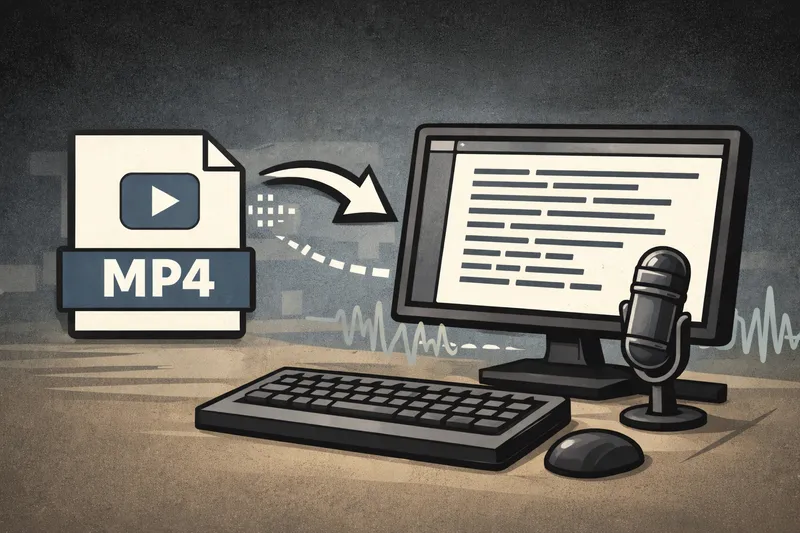
You already have the MP4 file. What you need now is a clean transcript you can use right away. Maybe it is a meeting recording, a client interview, a lecture, a podcast, or a video you want to repurpose into subtitles and posts. This guide keeps it practical: upload, transcribe, review, and export with less rework.
Why people need MP4-to-text transcription
- Turn long MP4 recordings into searchable notes so key decisions are easy to find later.
- Generate subtitle files (SRT or VTT) for video publishing on YouTube, courses, and social clips.
- Create editing scripts from spoken content before cutting a final video timeline.
- Keep meeting or interview records with timestamps for handoffs, approvals, and compliance history.
- Convert lectures, webinars, and training sessions into readable transcript docs for study and documentation.
How to transcribe an MP4 to text in minutes
- Start with your real file, not a perfect sample. Pick the MP4 you actually need to deliver, especially if it has background noise or multiple speakers.
- Upload the full MP4 once. Do not split the file first unless you must. Good tools can handle long videos and preserve transcript flow better in one pass.
- Set language and run transcription. If your clip includes accents or mixed speaking pace, keep the full context so words resolve more reliably.
- Review speaker labels early. Fix speaker switches first, especially in interview clips with overlap, because this affects every downstream edit.
- Clean punctuation and timestamps. Scan the transcript for sentence breaks, timestamp drift, and repeated filler words before exporting.
- Export for the next job. Save TXT or DOC for writing, and SRT or VTT if you need subtitle delivery.
If you want a direct workflow that stays focused on output quality, this platform is a practical place to run the process end to end.
What to look for in a good MP4 transcription tool
- Accuracy in difficult audio: handles noisy rooms, soft voices, accents, and overlapping speech.
- Speaker labels: easy to assign and correct, especially for interviews and team calls.
- Timestamps: consistent placement so you can jump back to exact moments in the MP4.
- Subtitle export: clean SRT and VTT output without broken line timing.
- Editing speed: quick search and low-friction cleanup.
- Sharing options: easy handoff in transcript, subtitle, or document format.
- Privacy basics: clear policies and predictable handling of uploaded files.
A practical workflow for MP4 transcription
audio-to-text.online is built for people who need finished output, not just a draft transcript. The workflow is straightforward: upload MP4, review transcript, correct speaker labels, and export in the format your project needs. That reduces context switching and shortens total edit time.
In practical terms, it works well when your goal is publish-ready text or subtitle files without a long cleanup pass.
Best for creators
If you publish content regularly, the transcript becomes your working draft for everything around the video. You can lift the strongest lines for the description, pull clean quotes for social posts, and build a tighter script for short clips without scrubbing the MP4 from the beginning each time.
It also helps you keep subtitles, show notes, and your final edit aligned. Instead of rewriting the same ideas in three places, you make fixes once in the transcript and move on.
Best for students
Students usually hit the same problem: lectures are long, but exam prep time is short. A searchable transcript solves that. You can find a term in seconds, jump to the timestamp, and review the exact explanation instead of hunting through a 90-minute recording.
It is especially useful in classes with fast lectures, technical vocabulary, or mixed Q&A, where handwritten notes miss details.
Best for teams
For teams, the value is clarity. After a meeting, nobody has to guess what was agreed or who said what. The transcript captures decisions, action items, and the exact wording around edge cases that often get lost in summary notes.
That makes handoffs cleaner across product, operations, support, and marketing, especially when several people join the same MP4 call.
Best for interview workflows
Interview work lives or dies on quote accuracy. With speaker labels and stable timestamps, you can verify wording quickly, check context before publishing, and avoid the back-and-forth that happens when quotes are sourced from rough notes.
Whether you are writing an article, preparing a report, or delivering research findings, a clean transcript gives you something you can defend and share with confidence.
MP4 transcription quality checklist (copy/paste)
- [ ] Speaker switch correctness is reliable across the full MP4, not only the first few minutes.
- [ ] Punctuation cleanup needed is light enough to finish in one edit pass.
- [ ] Timestamps stay aligned and do not drift late in the transcript.
- [ ] SRT/VTT subtitle line breaks are readable and timed naturally.
- [ ] Total edit time from first transcript to final deliverable is acceptable for your workflow.
How mp4 to text transcription work?
Our AI model first extracts the audio from your MP4 video. Then it listens to the speech and writes it down as text.
After that, it structures the transcript, adds punctuation, and formats everything to be as readable as possible. Done: you have clear text from your MP4 file.
FAQ
Can I transcribe a long MP4 file, like a full webinar?
Yes. Start with the full MP4 so transcript context stays intact, then review speaker labels and timestamps before export.
What format should I export for subtitles?
Use SRT for broad platform compatibility. Use VTT when your player or workflow expects web subtitle formatting.
How accurate is MP4 transcription with background noise?
Accuracy depends on audio quality, but you can reduce errors by checking speaker labels first and doing a quick punctuation pass.
Should I edit the transcript before creating subtitles?
Yes. Fix names, punctuation, and obvious timestamp issues first, then export SRT or VTT for cleaner subtitle lines.
How do I check if timestamps are trustworthy?
Jump to random points across the MP4 and confirm the transcript line lands on the right spoken phrase, especially near the end.
Can I use MP4 transcription for interview publishing?
Yes. A timestamped transcript helps verify quotes, attribute speakers correctly, and speed up editorial review.
What is the fastest way to compare two tools?
Use the same difficult MP4 in both tools and measure final edit time, not just how quickly raw transcript text appears.
Upload one real MP4 and compare how much editing you need. Start with your hardest clip, not your easiest one.
Try it on your MP4