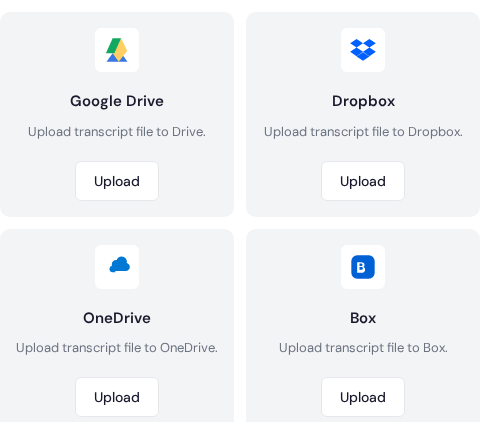
Cloud share tab with direct upload actions for Google Drive, Dropbox, OneDrive, and Box.
Overview
Share transcripts to Google Drive, Google Docs, Dropbox, OneDrive, or Notion in one step.
Share to a cloud destination
Open a transcript and choose a cloud share option.
Select the destination folder or workspace.
Confirm the file format and send.
Tips
Name files before exporting so they are easy to find.
Use PDF for final documents and TXT for quick edits.
Share a link if the recipient only needs to review.
Cloud sharing setup that scales
Cloud delivery works best when access and folder structure are predefined. Decide who can view or edit before sharing, and keep a single source-of-truth folder for each project so collaborators never use outdated files.
Create one project folder and consistent subfolders for exports.
Set editor/viewer permissions before inviting collaborators.
Use dated filenames for every transcript revision.
Share direct file links when a task is urgent.
Security and access checklist
Remove access for contractors after project completion.
Avoid public links for sensitive customer interviews.
Document folder ownership to prevent accidental lockouts.
 Express Transcript