Generate caption files, choose a style, and export for any editor.
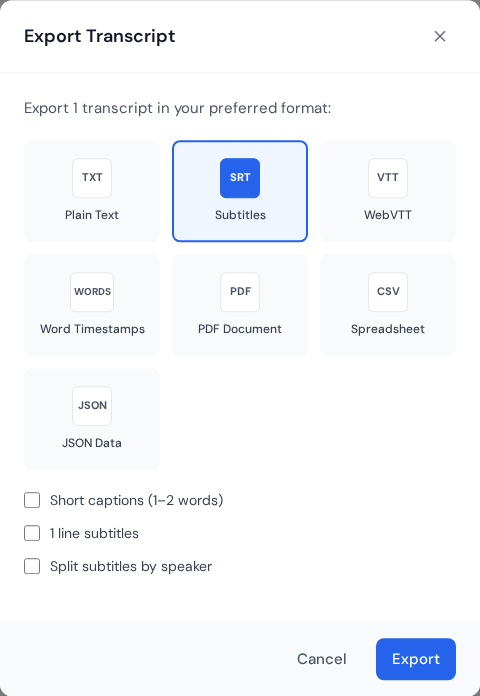
Subtitle export flow with SRT selected and subtitle-specific formatting options visible.
Overview
Use Smart Captions to turn a transcript into timed subtitles that are ready for editors and platforms.
Step-by-step
Upload your video or audio from the dashboard.
Open the transcript once processing is complete.
Choose Smart Captions and select a style that fits your video.
Review the timing and fix any names or terms.
Export SRT or VTT and import it into your editor.
Caption styles
One-line: Clean, easy to read for long videos.
Short captions: 1 to 2 words for fast social clips.
Split by speaker: Best for interviews and multi-speaker content.
Export tips
Use SRT for most video editors.
Use VTT for web players and platforms that require WebVTT.
Preview the subtitle file before publishing.
Complete subtitle production flow
High-quality subtitles require three passes: transcript cleanup, timing review, and playback QA in the final destination player. This avoids common issues like broken line wraps and late cue timing.
Correct names, acronyms, and punctuation in transcript first.
Generate subtitles and review cue segmentation scene by scene.
Adjust timing in dense speech sections for readability.
Test final output in the same editor/player used for publishing.
Delivery checklist
Provide SRT for editors and VTT for web players.
Ensure UTF-8 encoding for multilingual subtitles.
Remove overlapping cues before final export.
Archive a timestamped master subtitle file per version.
Ready to create subtitles?
Upload your video and get subtitle files in under a minute.
 Express Transcript